Connect Klaviyo
How to connect your Klaviyo account to Wizel with OAuth, choose your conversion metric, and manage or disconnect the integration. Includes troubleshooting.
Connect your Klaviyo account to power Wizel's campaigns, flows, segments, and reporting. Klaviyo is the sending engine, so connecting it is the one step that unlocks the rest of the app. Connecting uses OAuth 2.0 — there are no API keys to copy.
Need a hand? Email support@wizel.ai.
Before you start
You'll need:
- A Wizel account — sign in with email + password (verify your email first) or Google.
- A store in Wizel — use an existing store, or add one inline during the connect flow.
- Permission to manage integrations for that store (store owners and admins have this by default).
- A Klaviyo account you can authorize.
Connect with OAuth
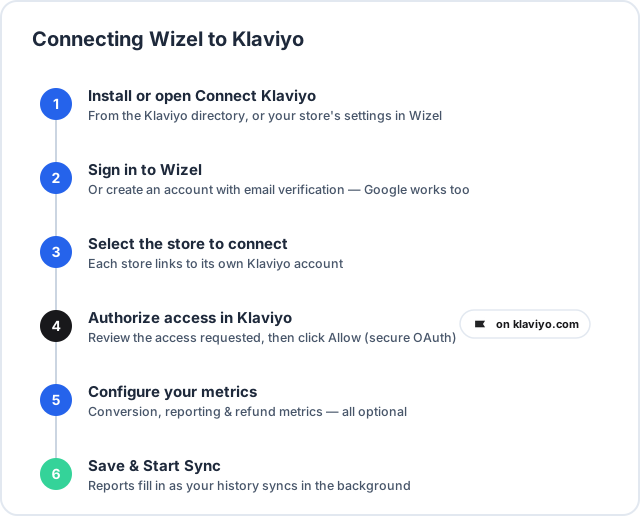
- From the Klaviyo integration directory click Install, or in Wizel open your store and go to Connect Klaviyo (
/store/<your-store>/klaviyo-connect). - Sign in to Wizel (or create an account) if you aren't already.
- Select the store you want to connect — or add one with the inline Add a new store form.
- Click Connect to Klaviyo (from the install flow) or Connect with OAuth (from your store's Connect Klaviyo page). You're redirected to Klaviyo's secure authorization page.
- Sign in to Klaviyo if prompted, review the requested access, and click Allow.
- Klaviyo returns you to Wizel with a green Connected badge.
- Choose your metrics, then click Save & Start Sync.
Choose your metrics
Setting your conversion metric is what starts the first reporting sync. Shopify Placed Order is auto-selected when found.
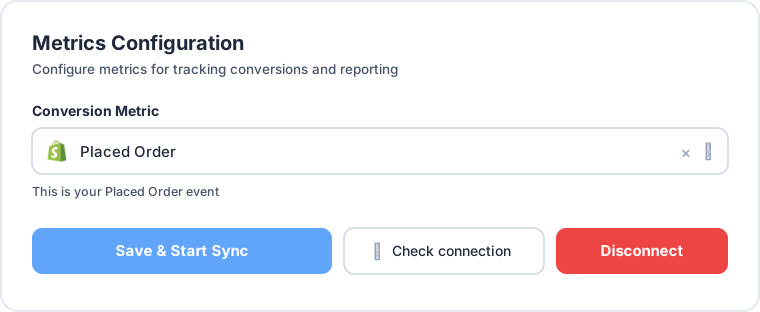
On Shopify? Your Placed Order metric is detected automatically — just confirm it and click Save & Start Sync. That's all you need. On other platforms you can also set these:
| Metric | What it's for |
|---|---|
| Conversion metric | Your "Placed Order" event, used for revenue attribution. |
| Reporting metric | A standard or custom metric for overall reporting. |
| Cancelled / refunded order metrics | Used to net out refunds. |
After you connect, reports fill in as data syncs in the background — brand-new stores may show empty charts until the first sync finishes. You can keep working while it runs.
How to use Wizel with Klaviyo
Once connected, Klaviyo powers these areas of Wizel:
- Plan & create campaigns — the Campaign Calendar and Campaign Board show your past, scheduled, and draft Klaviyo campaigns alongside AI campaign ideas. The Email Wizard turns a short brief into a campaign email and publishes it back to Klaviyo as a template and draft campaign for you to schedule.
- Manage flows & segments — browse and manage your Klaviyo flows and segments, set up a welcome series, and create new segments (for example, by marketing consent) without leaving Wizel.
- Reports & analytics — twelve Klaviyo-powered reports: Revenue, Campaigns, Flows, Deliverability, Profitability, RFM / Segments, Products, Forms, Lifecycle, Acquisition, Retention, and Customer Value.
- Strategy — the Retention Strategist turns your Klaviyo and Shopify history into an annual revenue plan with a monthly strategy brief and goal tracking.
Every report also includes an Ask Wizel assistant that answers questions using your live numbers.
Manage your connection
Everything below lives on the store's Connect Klaviyo page (/store/<your-store>/klaviyo-connect).
- Check connection — verify the integration is healthy in real time.
- Reconnect — if access is removed in Klaviyo or expires, you'll see a "Klaviyo access was removed" banner; click Connect with OAuth to re-authorize.
- Disconnect / uninstall — click Disconnect and confirm. Wizel clears the stored connection for that store and asks Klaviyo to revoke the authorization, so the app is removed on Klaviyo's side too.
What data the integration uses
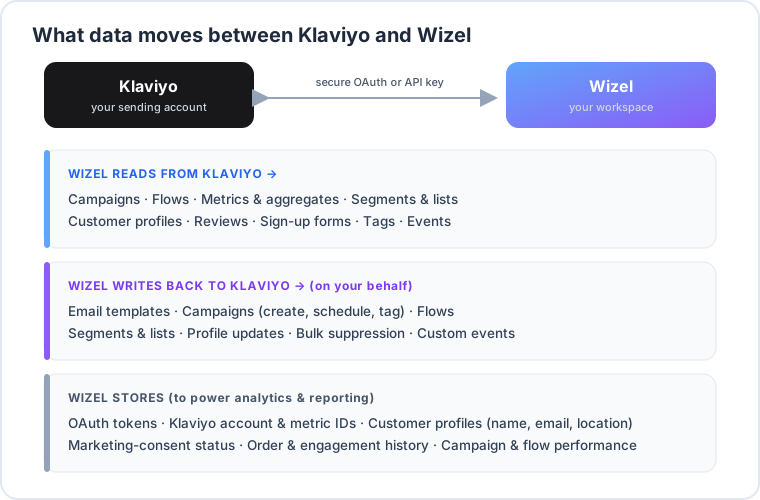
When you authorize the integration, Wizel uses Klaviyo-managed OAuth scopes to:
- Read your campaigns, flows, metrics, segments, lists, customer profiles, reviews, sign-up forms, tags, and account details — to power reporting, analytics, and segmentation.
- Write, on your behalf, campaigns, flows, segments, lists, email templates, tags, profile updates, and events — so Wizel can create, schedule, and tag content in Klaviyo for you.
To run those features, Wizel syncs and stores: connection tokens, account and metric IDs, customer profiles (name, email, location, and marketing-consent status), and order, engagement, and campaign performance history. Wizel never stores your customers' passwords or payment details.
For the full breakdown, see our privacy policy or email support@wizel.ai.
Troubleshooting
| Problem | Fix |
|---|---|
| "Klaviyo access was removed" / connection expired | The authorization was revoked or expired. Click Connect with OAuth to reconnect. |
| Permissions were not granted | You clicked Deny on Klaviyo's consent screen. Restart the connect flow and click Allow. |
| Reports are empty after connecting | The first sync runs in the background and needs time. Confirm a conversion metric is selected — it gates the reporting sync. |
| Connect or Disconnect fails with a permissions error | Your Wizel role may not allow managing integrations. Ask a store owner or admin, or contact support. |
Support
Email support@wizel.ai for help connecting or managing your Klaviyo integration.